How to split a restaurant bill by item, including tax and tip
Assign each dish to the people who had it
An equal split works when everyone agrees to share the total. When people order different meals, share an appetizer, or skip drinks, splitting by item makes the amounts easier to explain.
In SplitMyExpenses, create an itemized expense, enter the receipt details, and assign each line to the people who shared it. Add tax and tip, review each person's total, then save the expense and settle up.
Example: different meals and one shared dish
Alex orders a $20 meal, Sam orders a $30 meal, and they share a $10 appetizer equally. Their food subtotals are $25 for Alex and $35 for Sam, totaling $60.
If the receipt also has $6 in tax and $12 in tip, allocating both in proportion to the food subtotals gives:
| Person | Food | Tax | Tip | Total |
|---|---|---|---|---|
| Alex | $25.00 | $2.50 | $5.00 | $32.50 |
| Sam | $35.00 | $3.50 | $7.00 | $45.50 |
| Total | $60.00 | $6.00 | $12.00 | $78.00 |
The itemization split weights tax and tip by each person's subtotal. Check the final cents against the receipt before saving, especially when amounts do not divide evenly.
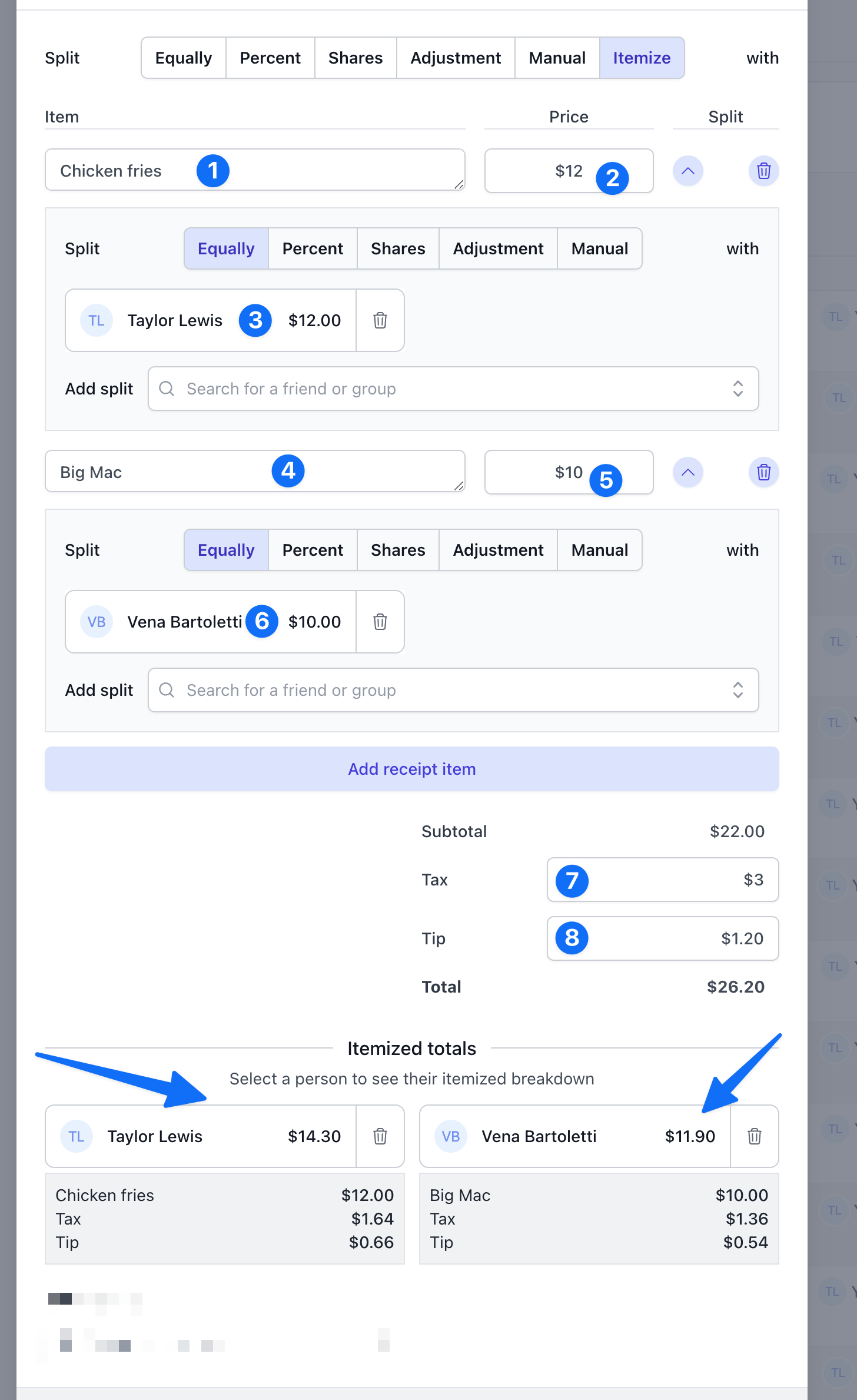
Enter the receipt or scan it
- Create an expense and choose the itemization split type.
- Add the participants and record who paid the restaurant.
- Enter the receipt items, or scan a receipt image to extract the details.
- Review item names, prices, tax, tip, and the total against the original receipt.
- Assign every item to its participants and save when the totals match.
Manual expense entry and splitting are part of the free workflow. AI receipt scanning requires premium access; check plan details if you want to use scanning. Always review extracted details before saving.
Share appetizers without splitting every meal equally
The simple receipt editor shows items and friends in a grid. Select one person for a meal they ordered alone and several people for a shared dish. Each line is divided equally among the people selected for that line.
Use Advanced mode if an item needs custom percentages, shares, or exact amounts. For example, two people can share a dish unequally while the rest of the receipt stays simple.
Include tax and tip once
Check whether a service charge or gratuity is already included in the receipt. Record the actual charges rather than adding the same charge again as a tip. The tax and tip percentage controls help you review amounts relative to the subtotal.
If the restaurant applied different taxes to different items or you agreed on a special arrangement, review whether the weighted totals match the amounts you intend. Make the required adjustments before asking friends to pay.
Decide who shares a discount
For a coupon or restaurant discount, add a negative receipt line and select the people who benefit. In Simple mode, a $10 discount assigned to two people reduces each person's share by $5.
That equal discount allocation is separate from weighted tax and tip. If you want an unequal discount allocation, use Advanced mode to set custom percentages, shares, or amounts. The discount does not automatically distribute in proportion to each person's food subtotal.
Settle the saved balance
If one person paid the restaurant, the saved expense records what the others owe that person. Use your group's balance to avoid requesting the same amount again when other shared expenses already offset it.
For a payment handoff, follow the Venmo guide. A saved expense or payment request does not move money by itself. Verify that the repayment arrived, then record the payment so the ledger matches reality.
For a meal during a longer vacation, keep the receipt in your trip group. It can then settle alongside lodging, taxis, and other shared costs.
Split your next restaurant bill with a record of who shared each item.

Creator of SplitMyExpenses.com