Sign in with Google or Apple on your existing account
One account, more ways in
If you signed up with an email and password, you can now connect Google or Apple to that same account. After that, the Google or Apple button on the sign-in page opens the account with all your groups and balances, instead of creating a new, empty one.
Your existing sign-in methods stay available, so your password keeps working too.
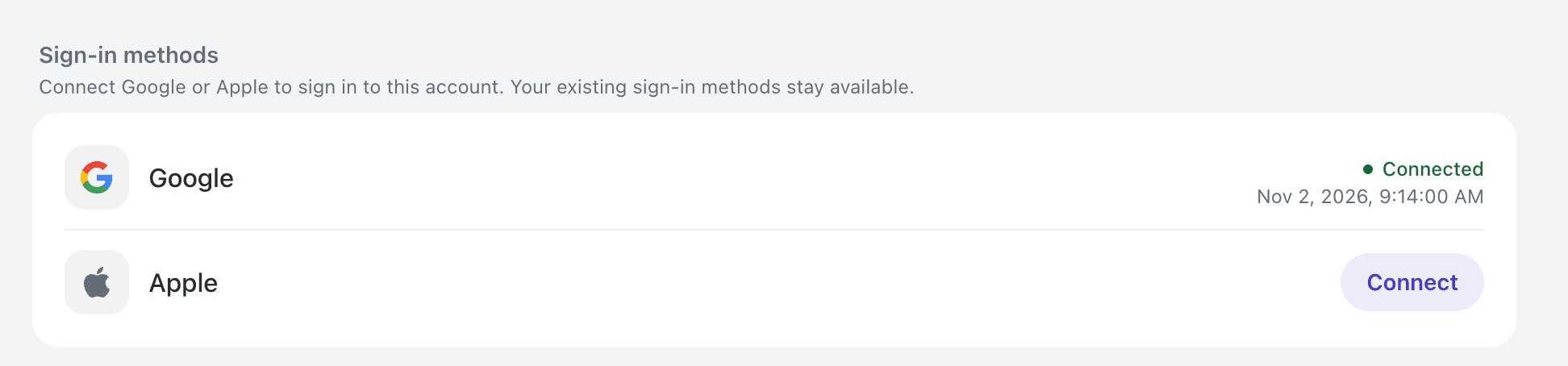
Connect Google or Apple
- Open Settings on the web and go to Security.
- Under Sign-in methods, choose Connect next to Google or Apple.
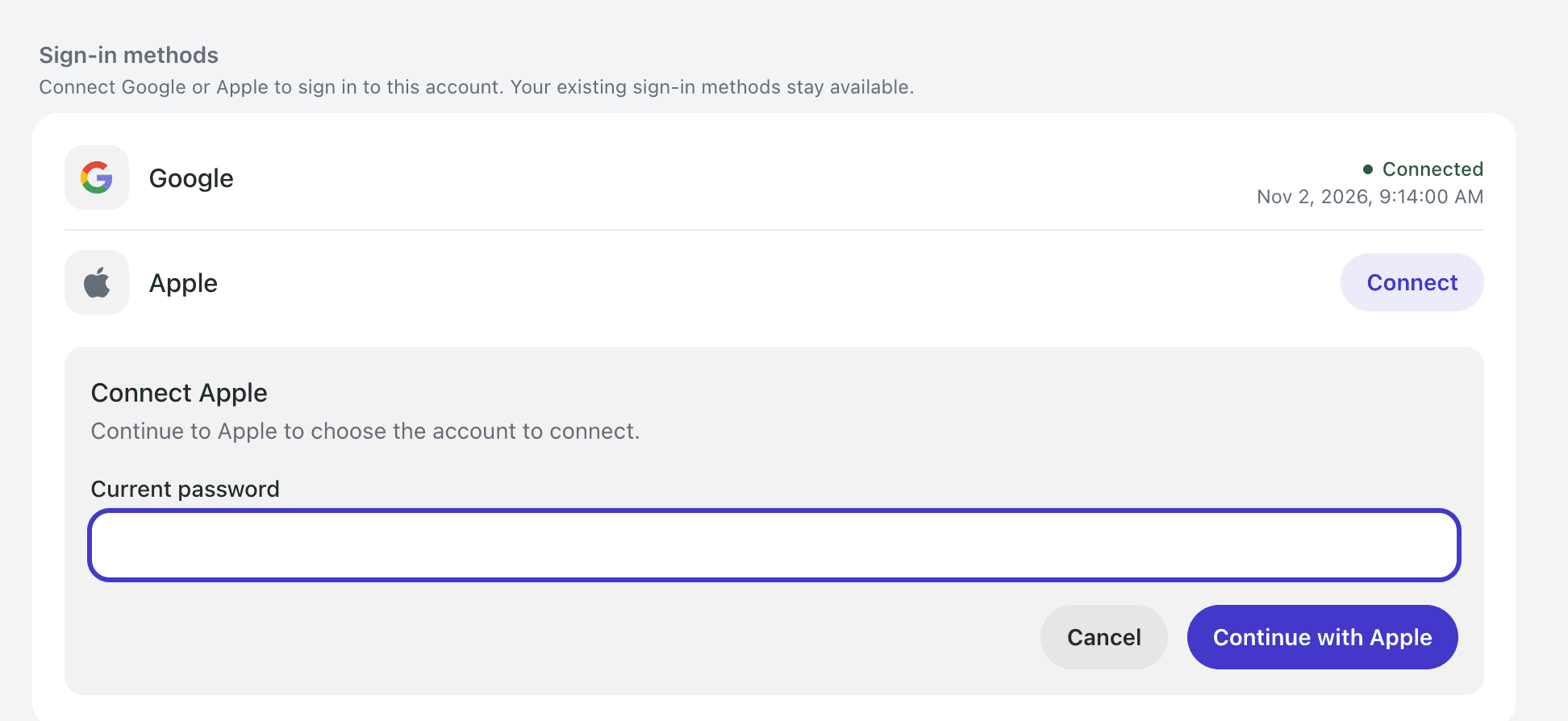
- Confirm your current password, then choose the Google or Apple account to connect.
Connected methods show the date they were added. Sign-in methods are also in Settings in the iPhone and Android apps.
Apple sign-in on Android
Sign in with Apple works on Android too. If you started on an iPhone with Apple and later switched to an Android phone, tap Sign in with Apple on Android. It opens Apple's sign-in in the browser and returns you to the app, signed in to the same account.
FAQ
Will connecting Google create a second account?
No. Connecting adds Google as another way into the account you're signed in to. That's the point: it stops you from ending up with a separate, empty account.
Can I still use my password?
Yes. Connecting Google or Apple doesn't remove your email and password.
Why does it ask for my password?
Adding a new way to sign in is a security change, so SplitMyExpenses confirms it's you first.
New here? Create a free account, or read about the SplitMyExpenses mobile apps.
If you have any questions, or you need some help, please reach out to us: support@splitmyexpenses.com.

Creator of SplitMyExpenses.com