Join a group or add a friend by scanning a QR code
The fastest way to get everyone into the group
You're at the airport with five friends, and the first shared taxi is about to happen. Instead of collecting email addresses, open the trip group and show a QR code. Everyone scans it and joins.
The SplitMyExpenses app for iPhone and Android now has QR codes for groups and for friends.
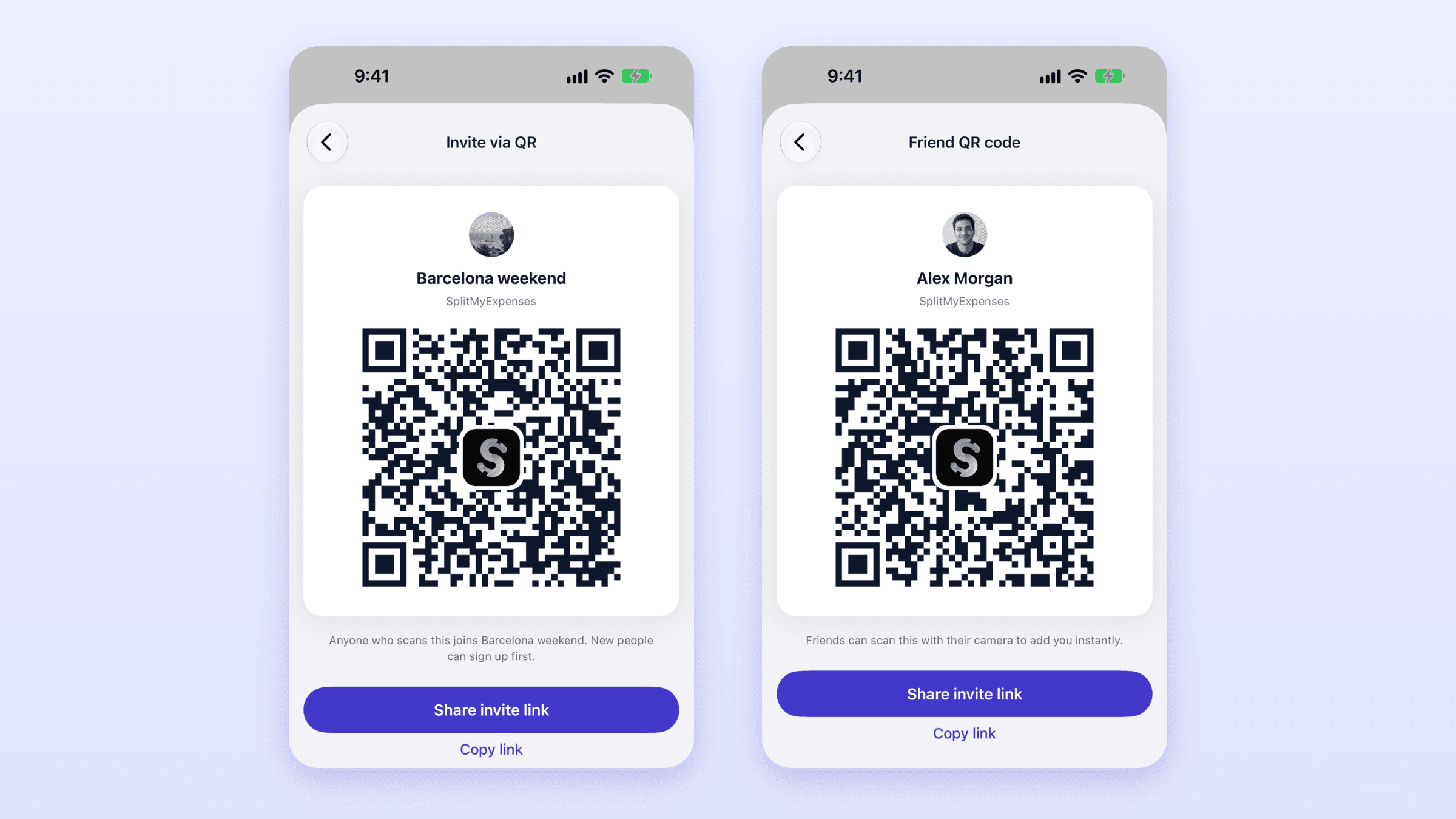
Invite people to a group
- Open the group and tap the people icon at the top.
- Under Invite, tap Show QR code.
- Anyone who scans it joins the group. People who don't use SplitMyExpenses yet can sign up first.
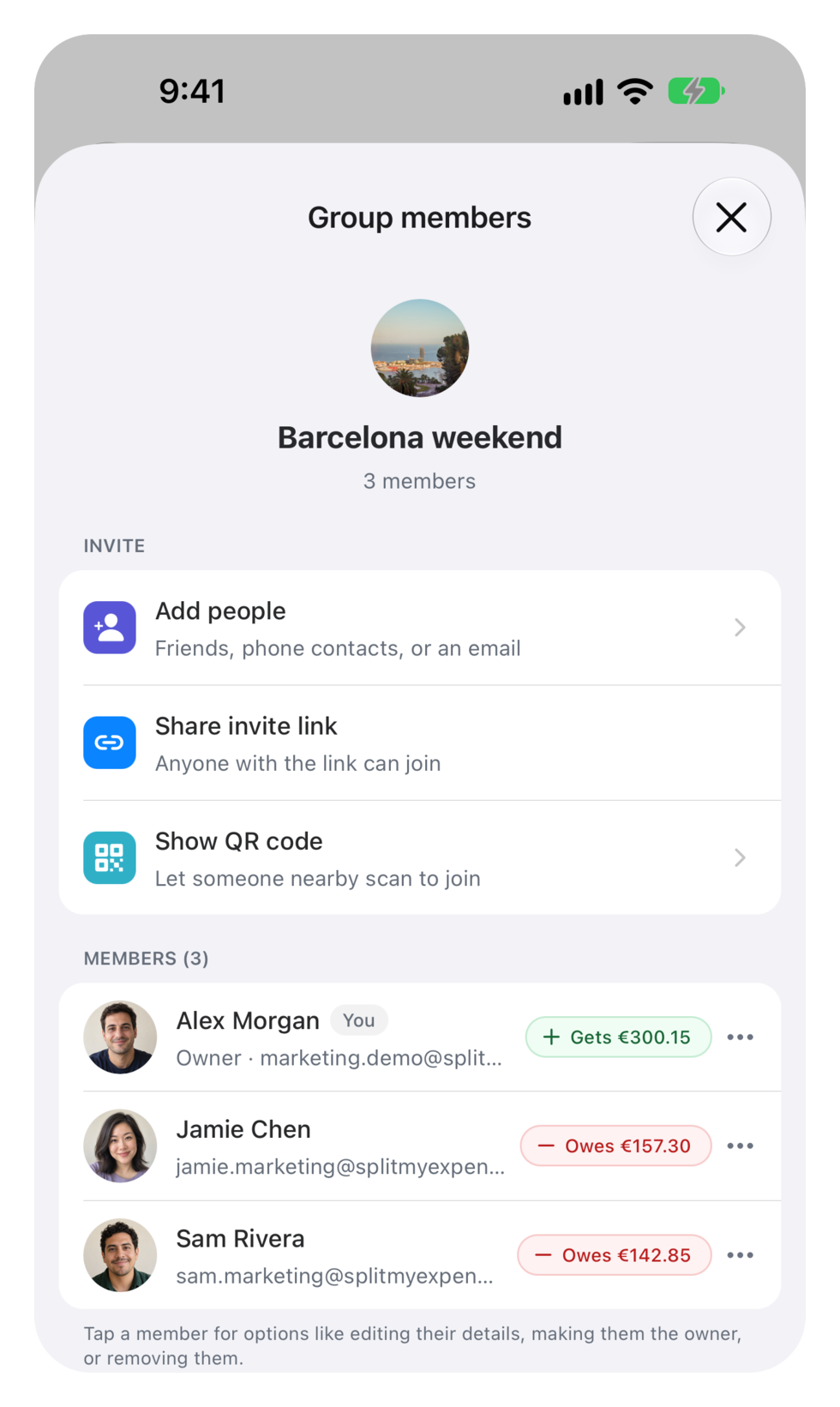
The same screen lets you Share invite link in Messages or WhatsApp, or Add people from your friends and contacts. Group owners can also reset the invite link. That makes a new link and QR code, and the old ones stop working.
To scan someone else's group code, tap Join group on Home, then Scan QR code. You can also paste an invite link there.
Add a friend in person
Your friend QR code is in Settings → My QR code. When a friend scans it, you're added to each other's friends, ready to split a dinner without a group.
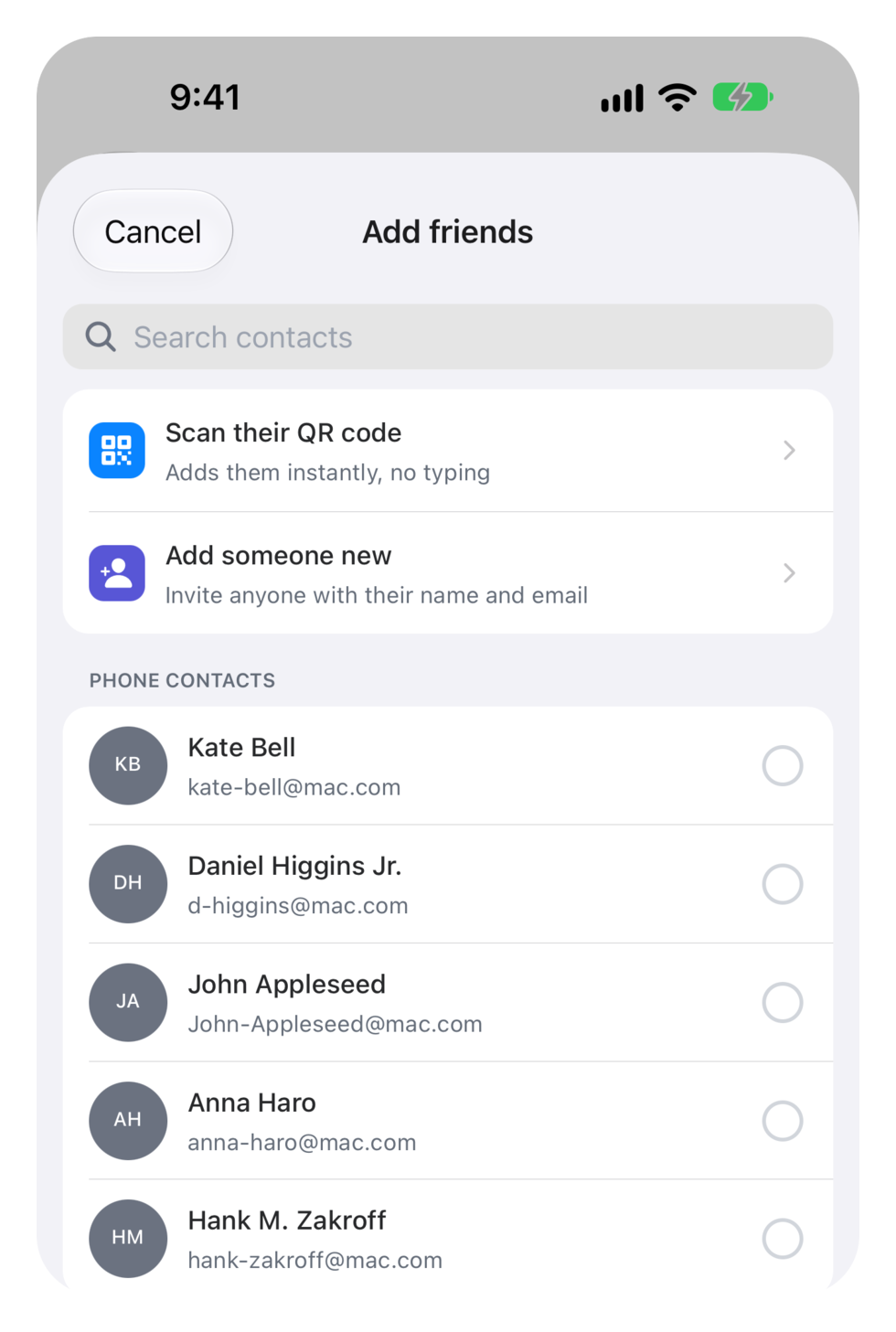
To scan a friend's code, go to Add friend and tap Scan their QR code.
FAQ
Can people scan the code with their phone camera?
Yes. The QR code is an invite link, so the iPhone or Android camera opens it too. If the person has the app, it opens there. If not, they can sign up first.
Does the person need an account?
They need a SplitMyExpenses account to join, and they can create one free after scanning.
How do I stop an old invite from working?
As the group owner, reset the invite link from the group's edit screen. Old links and QR codes stop working right away.
Setting up a trip? Read how to split bills on a group trip. Get the app from the App Store or Google Play.
If you have any questions, or you need some help, please reach out to us: support@splitmyexpenses.com.

Creator of SplitMyExpenses.com