Change an expense category straight from the list
Fix a category in one tap
Categories drive your spending stats, so a mislabeled expense throws off the chart. Paper towels filed under groceries, a hotel filed as "Other": small things, but they add up across a household or a trip.
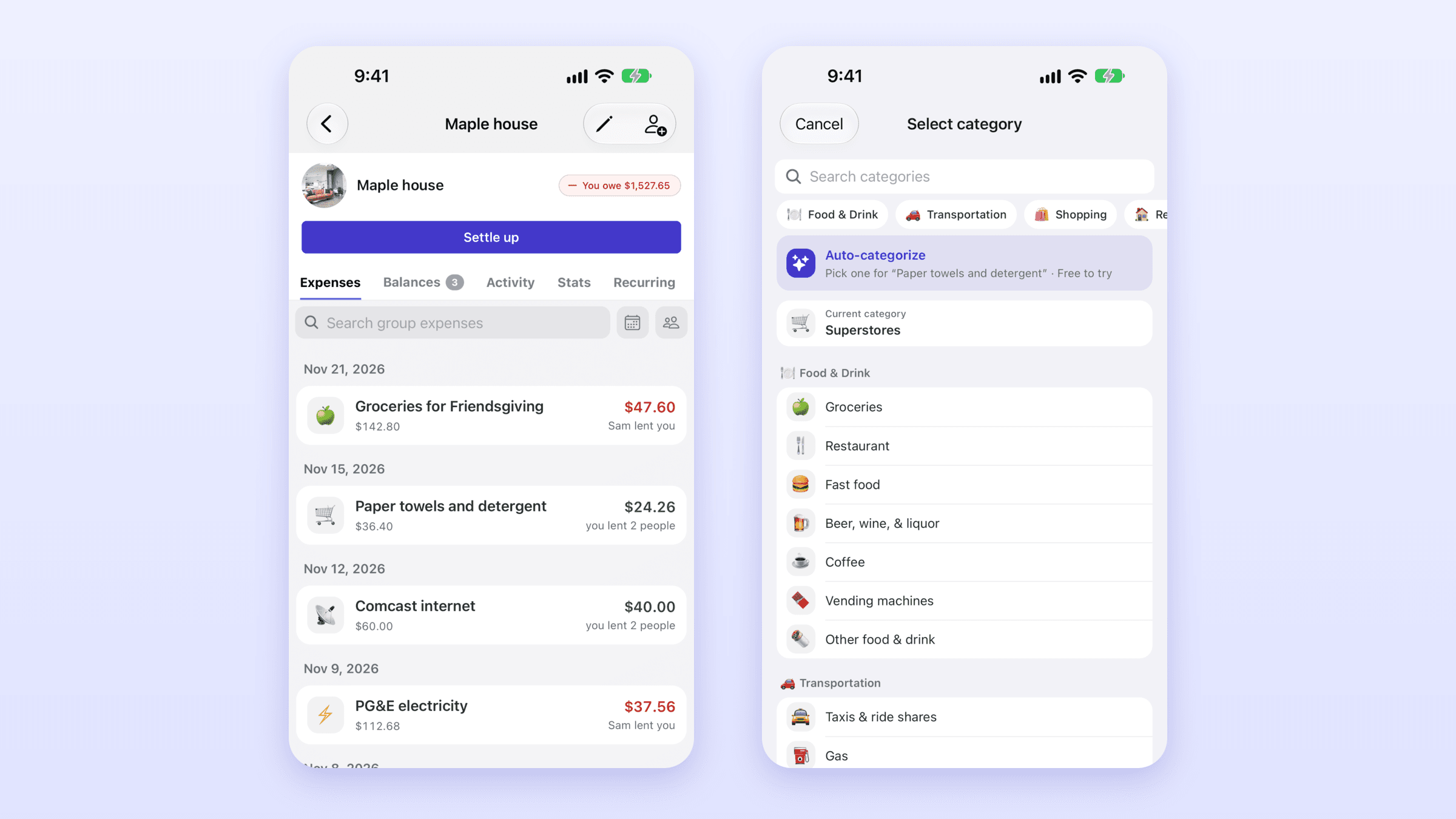
In the SplitMyExpenses app for iPhone and Android, the icon next to each expense is now a button. Tap it to open the category picker, choose the right one, and you're done. You never open the expense editor.
How it works
- Open a group, a friend, or Expenses.
- Tap the icon on the left of an expense.
- Search, jump to a section like Food & Drink, or tap Auto-categorize to have SplitMyExpenses pick one from the description.
- Choose a category. The list and stats update right away.
The picker shows the current category at the top, so you can see what you're changing.
Clean up your stats
It works in Stats too. Tap a category in the chart to see its expenses, and if something doesn't belong, tap its icon to move it. See explore expenses from your spending stats.
FAQ
Does changing a category affect anyone's balance?
No. Categories only change how expenses are grouped in lists and stats. Amounts and splits stay the same.
Is this free?
Yes. Changing categories is free. Auto-categorize is part of Premium, with a free try on the free plan.
Can I do this on the web?
On the web, open the expense and change the category in the editor.
Want to see where the money goes? Read about expense categories and the SplitMyExpenses mobile apps.
If you have any questions, or you need some help, please reach out to us: support@splitmyexpenses.com.

Creator of SplitMyExpenses.com